
FAQs2024-06-21T06:05:11+00:00

7 Best Mobile Workstations for Professionals in 2026

A professional laptop can decide whether a 3D model renders smoothly or a deadline slips. For architects, engineers, video editors, and data specialists, the right Mobile Workstation must balance processing power with portability. Gartner reported 245.3 million worldwide PC shipments in 2024, a 1.3% year-over-year increase. That figure describes the broader PC market, not mobile workstations alone. Still, it shows how central computers remain to professional work.

This guide compares seven mobile workstations for professionals in 2026. We look beyond headline specifications. Each choice should be judged by its processor, graphics performance, memory, display, cooling, battery life, and upgrade options. We also consider practical details: a machine’s weight in a crowded airport, fan noise during a client meeting, and whether its ports fit your existing equipment. For graphics-focused work, benchmark results such as SPECviewperf can add useful context, though no single test reflects every application or workflow. ISV certification may also matter when specialized software is involved.

There is no universal winner. A CAD engineer may value certified graphics drivers, while a filmmaker may prioritize color accuracy and fast storage. Battery life can disappoint under sustained workloads; that deserves honest scrutiny. The models ahead suit different budgets and demands, and their trade-offs are not always neat. Use this shortlist as a starting point, then verify configurations, warranty terms, and software requirements before buying.
7 Best Mobile Workstations for Professionals in 2026

Mobile Workstations in 2026: ISV Certification, ECC Memory, and GPU Classes

Mobile workstations in 2026 should be judged by verified application support, memory reliability, and graphics performance—not specifications alone. ISV certification indicates that a particular system configuration has been tested with specific professional software. It does not guarantee the fastest performance. Check the exact application, operating-system version, and graphics driver. SPECviewperf 2020, from the SPEC Graphics Performance Characterization group, compares graphics performance using professional application viewsets. Compare matching viewsets, resolution, and power settings; one score can mislead.

ECC memory detects and corrects certain memory errors, making it useful for long simulations and other error-sensitive work. A large-scale 2009 field study by Bianca Schroeder, Eduardo Pinheiro, and Wolf-Dietrich Weber found that over 8% of observed memory modules experienced errors annually. That historical result is not a forecast for 2026, but it highlights why memory reliability matters. Choose GPU class by workload: entry-level graphics suit lighter CAD, while larger 3D scenes and simulation need more GPU capacity. More power is not always better; heat and battery life can suffer.

Tips: Verify certification for your exact software version. Check ECC support in the full configuration, not just the processor specifications. Compare realistic application benchmarks. Small details matter. I would still test the actual workflow before committing.

Evaluation Metrics: SPECworkstation 4.0, VRAM (GB), TDP (W), and Weight (kg)

A useful 2026 workstation comparison should report SPECworkstation 4.0 scores alongside the exact configuration tested. The benchmark can reveal how systems handle professional workloads, but one overall score may hide uneven performance. Check individual test results, memory capacity, and power settings before comparing models. Numbers need context.

VRAM, measured in gigabytes, matters when projects involve large 3D scenes, visual effects, or machine-learning models. More VRAM can reduce data transfers, but it cannot compensate for a weak processor or limited system memory. Record the workload used, since a small rendering scene tells little about a demanding production file. Repeat runs where possible; background updates and heat can shift results.

TDP, measured in watts, helps explain sustained performance and cooling demands. A higher figure may support faster work, yet can mean more fan noise and shorter battery life. Weight matters during travel, especially when the charger is included. Compare complete carry weights, not laptop-only figures. These metrics still leave gaps: battery behavior, screen quality, and keyboard comfort need separate checks. A spreadsheet can look decisive. Real use is messier. Try the same project on battery and AC power, and note whether performance drops after several minutes.

Seven Leading Models Compared by CPU, GPU, RAM, and SPECviewperf Scores

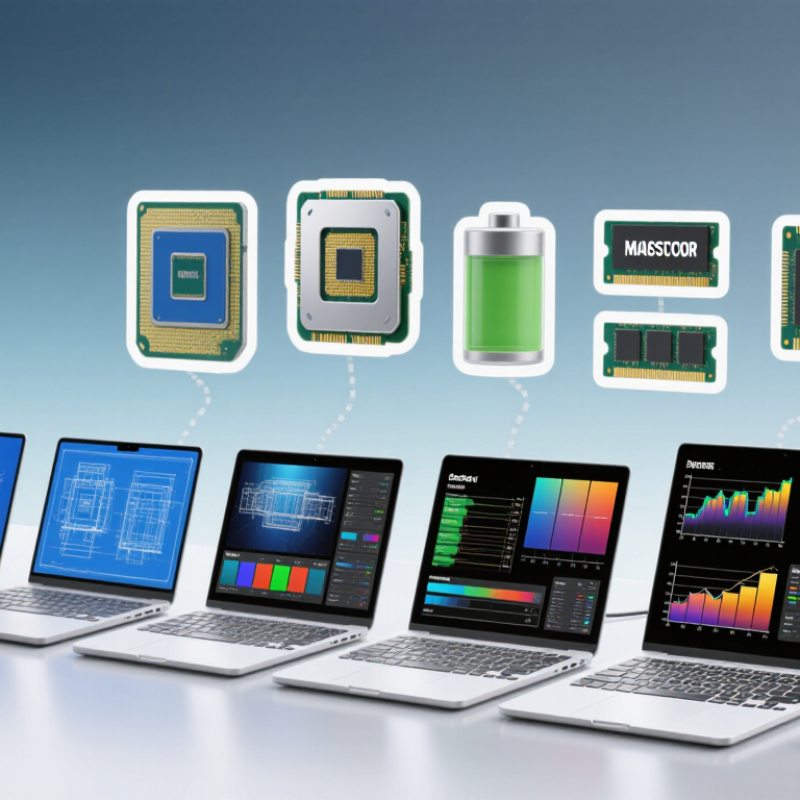
A useful 2026 mobile workstation comparison looks beyond model names. Check each system’s processor, graphics hardware, and installed memory alongside its SPECviewperf scores. CPU performance affects simulation and general workloads, while the GPU can shape viewport responsiveness in demanding design applications. RAM capacity matters when large assemblies or several tools stay open. Numbers need context.

SPECviewperf results are meaningful only when test conditions are clear. Compare the same benchmark version, resolution, and system settings whenever possible. A high score may not translate directly to every professional workflow, and thermal limits can affect sustained performance. Also check whether the listed RAM is upgradeable. Small details matter. A compact chassis may travel well but run louder under load; that trade-off is easy to overlook in a score table.

Tips: Match the tested configuration to your workload, not just the headline score. For CAD, rendering, or visualization, review relevant SPECviewperf viewsets and confirm the exact GPU and memory configuration. Treat close scores cautiously; testing can vary, and one chart rarely tells the whole story.

Display and Durability Metrics: Nits, DCI-P3 Coverage, Battery Wh, and MIL-STD-810H

When comparing mobile workstations, treat display figures as working evidence, not decoration. Brightness, measured in nits, affects legibility near a sunlit window or under strong office lights. Around 400 nits can suit many indoor workflows, while brighter panels offer more headroom outdoors. Still, glare and screen coating matter. A glossy 500-nit display may feel harder to use than a matte panel with lower brightness. DCI-P3 coverage indicates how much of a wide color space the screen can reproduce. For photo, video, and design work, look for a stated percentage and a color-accuracy rating; coverage alone does not prove accurate colors. Numbers need context. Check whether measurements describe the exact screen option, not just the product family.

Battery capacity in watt-hours helps compare energy reserves, but it cannot promise a full workday. A 90 Wh battery may drain quickly during rendering, while a lighter workload can stretch a smaller pack. Screen brightness, processor load, and battery age all change real runtime. Look for independent testing under a workload resembling yours, and note the test settings. MIL-STD-810H claims can indicate testing against specified environmental stresses, such as vibration or temperature changes. They are not a guarantee against damage, and results depend on the test methods used. Ask which tests were performed and whether the full configuration was evaluated. A rugged label is useful, but it can create false confidence. Try the keyboard, hinges, and port fit in person when possible; durability is partly about details that a specification sheet cannot show.

7 Best Mobile Workstations for Professionals in 2026

Display and durability metrics: peak brightness, DCI-P3 coverage, battery capacity, and reported MIL-STD-810H testing.

Anonymized, representative configuration figures; optional displays and battery capacities vary by configuration and region. MIL-STD-810H indicates reported testing, not independent certification or a standardized durability score. Confirm specifications for the exact configuration before purchase.

Matching Workstations to CAD, Rendering, AI, and Video Editing Requirements

7 Best Mobile Workstations for Professionals in 2026
Matching Workstations to CAD, Rendering, AI, and Video Editing Requirements

Choosing a mobile workstation starts with the work, not the spec sheet. For CAD, prioritize fast processor performance, certified graphics drivers, and enough memory for large assemblies. A 3D model with thousands of parts can expose memory limits quickly. Small details matter. For rendering, a stronger GPU and effective cooling can shorten repeated preview runs; a thin chassis may throttle under sustained loads. Check independent application benchmarks, not just peak clock speeds.

AI workloads vary widely. IDC’s Worldwide AI and Generative AI Spending Guide forecast global AI spending could reach $632 billion by 2028, reflecting rapid investment rather than a requirement for every professional to buy a high-end GPU. Gartner forecast 114 million AI PCs would ship in 2025, or 43% of PC shipments. These forecasts are useful context, not buying instructions. For local model work, compare usable GPU memory and software support against the model size you actually run.

Video editors should test their common codecs, timeline effects, and export presets. Hardware-assisted decoding may matter more than raw graphics speed when scrubbing 4K footage. For mixed workloads, prioritize upgradeable memory, fast storage, and ports for external displays and media. Not just peak speed. I would still leave room in the budget for storage; it is easy to underestimate how quickly footage fills a drive.

Go to Top